Client Portal
 Enterprise AI
 Agentic Enterprise Builder
 Secure Cloud Foundation
 Google Workspace Launch Pad
 Always Ready Resilience
 Blog
Blog Whitepapers & eBooks
 Events
 Partnerships
 Case Studies
 Company
 Careers

6 Tips to Generate a Full Presentation with Gemini in Google Slides

Meghan Austin
Staring at a blank slide and wondering where to start is a thing of the past.
Gemini in Google Slides makes it easier to create polished, professional presentations without starting from scratch. With AI-powered tools for generating slides, refining text, improving layouts, creating speaker notes, and more, Gemini can speed up nearly every stage of presentation creation.
By using Gemini in Google Slides, you can create a complete presentation in a fraction of the time. Just start a conversation with Gemini and let it handle the heavy lifting.
You might be surprised by what it can do. Here are six practical ways to use Gemini in Google Slides to build better decks faster.
1. Generate an Entire Slide Deck by Describing What You Want to Create
Rather than building slides from scratch, element by element, all you have to do is tell Gemini what you’re looking for.
Example prompt: “Create a pitch deck for our fall marketing campaign. Focus on key details of the pop-up as well as financial projections.”
Gemini will walk you through all of the options to personalize your presentation, starting with the basics.
For instance, you can select whether you’d like your presentation to be short (4-5 slides), medium (8-10 slides), long (10+ slides), or another length of your choice. Opt for a professional or casual tone, or anything in between – define it yourself in the text box.
Tip: Already have a slide deck whose look you love? Click “Match a presentation style” and select Add from Drive. Pick a file, and Gemini will apply its visual style to your new deck.
2. Add Sources for Gemini to Search and Gather Data
Of course, Gemini can’t pull insights out of thin air. You’ll have to give it something to work with.
Based on your presentation prompt, Gemini will automatically recommend files from your Google Drive to use as data sources. These include Docs, Sheets, Slides, and PDFs. You can also opt to let Gemini search your Gmail account, Chat, and the web for relevant information.
Or simply add specific files manually to help Gemini build a deck grounded in the insights your presentation needs.
Let’s say you add a Google Doc titled “Pitch Proposal.” Gemini can now construct a narrative around your proposal and customize slides based on the pitch outline from your document. It’s that easy.
Tip: Type “@” in your prompt and Gemini will draw from the Sheet, doc, or file you reference – and instantly pull data into tables or charts without you copy-pasting a thing.
3. Automatically Refine Text with Pre-Set Options
Sometimes the wording on your slides just doesn’t feel quite right. Gemini can help.
Select any text box containing the content you want to change. Then click the Refine button – the pencil-with-sparkles icon – to make your text shorter, more formal, rephrased, or bulletized using pre-set options optimized for Slides.
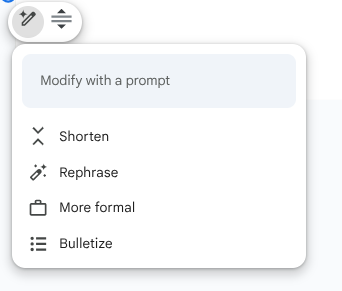
Or you can ask Gemini to polish up the text instead, using plain-language instructions in the prompt box.
Example prompt: “Simplify this slide with less text, convert to two columns, and make the tone sound more enthusiastic.”
Iterate as many times as you need. Once you’re happy with the text suggested by Gemini, click Replace to swap it straight into your slide.
Takeaway: Dense paragraphs kill scannability. Use Gemini to cut down wordiness into brief, readable statements, or convert your text into clean bullet points.
4. Enhance Slides for an Upgraded Visual Layout
Are you almost satisfied with the layout of an existing slide, but not quite? Instead of manually fiddling with your design elements, select “Enhance this slide” to let Gemini take a stab at it.
Gemini will instantly redesign the visual layout, with new colors, fonts, spacing, clip art, and more, applied automatically. Each element remains fully editable, and your text stays untouched.
Most importantly, Gemini ensures visual consistency by analyzing your existing deck to generate designs tailored to your established style. You get brand-matched slides with dynamic layouts that fit your unique presentation, not just a generic template.
And if you don’t like the Gemini-enhanced layout, just undo it and try again. Nothing is set in stone.
Tip: “Enhance this slide” works best when your content is already finalized and only the visuals need adjusting.
5. Generate Speaker Notes Instantly
Coming up with speaker notes is a breeze with Gemini. Simply describe what you’re looking for, and Gemini will write notes based on the content of each slide.
Example prompt: “Create a speaker note for slide #1. Keep it short and sweet, but also energetic and welcoming.”
If you prefer to generate notes for your entire slide deck at once, ask Gemini for that directly.
You can even specify the approximate word count or speaking time for your notes by including the desired length in your prompt. Speaking time will depend on your pace, of course.
A good guideline is to spend 20-45 seconds per slide for a fast-paced presentation that maintains high energy and momentum, and anywhere from 1-3 minutes otherwise, to keep your audience engaged without rushing.
Tip: To help tailor output, tell Gemini who your audience is. Speaking to a room of investors is different from presenting at an all-hands meeting. The more context you provide, the better.
6. Turn Your Presentation Into a Shareable Video
Why stop at slides? With Google Vids recording now integrated directly into the Slides interface, you can seamlessly turn your presentation into a shareable video, too.
Select Record in the right-hand menu. You’ll be guided through a streamlined recording workflow with advanced creation capabilities, including transcript-based editing and voiceover generation.
If you enable the option to include AI scripts and voiceovers, Gemini will analyze your text and speaker notes to create a script and build an AI narration track. Open the Voiceover menu to change your virtual voice actor and adjust tone and style.
Alternatively, you can narrate your own presentation, recording yourself in Picture-in-picture mode by selecting Camera & Screen. To record voice only, click Audio, and to record the slideshow only, click Screen.
Once you’re finished, Slides will generate an immediately shareable video link.
Takeaway: Turning your presentation into a polished, professional video asset gives you an easy way to extend the reach of the work you’ve already done.
Beyond Google Slides: Take Gemini Further
With Gemini in Google Slides, you can go from a blank slide to a presentation-ready deck in minutes. Gemini handles the tedious and time-consuming parts, so you can focus on your message.
But Slides is just one way to experience what Gemini can do. Wursta’s change management team can help you take Gemini beyond individual workflows and bring that same AI-powered productivity to enterprise-wide adoption.
Ready to see how Gemini for Enterprise can transform your organization? Contact us today.