Client Portal
 AI Transformation Journey
 Agentic Enterprise Builder
 Secure Cloud Foundation
 Google Workspace Launch Pad
 Always Ready Resilience
 Blog
Blog Whitepapers & eBooks
 Events
 Partnerships
 Case Studies
 Company
 Careers

How to Build a Custom Gemini Gem for Your Team: Step-by-Step Guide

Meghan Austin
If you’re using an AI assistant at work, you probably already have a collection of go-to prompts.
Maybe there’s one that helps you rewrite emails in your company’s brand voice. Or one that summarizes meeting notes in a consistent format every time. Or one that reviews documents against your internal standards.
The problem is you end up re-explaining your role, your preferences, and your company’s context every single time you open a new chat. Gemini Gems fixes that. You build the instructions once, attach whatever reference files it needs, and from then on anyone on your team gets the same expert assistant on demand.
But what if you could package those instructions into a reusable AI assistant that anyone on your team can use at any time? That’s the idea behind Gemini Gems.
In this guide, we’ll show you how to build a Gem step by step. First, let’s cover the basics.
What Are Gemini Gems?
A Gemini Gem is a saved Gemini configuration: instructions, an optional set of reference files, and a name, all packaged so you don’t rebuild it from scratch every conversation. Once it’s set up, it answers the same way every time, whether you’re the person who built it or a teammate opening it for the first time.
Gems are shareable, and you can build one for almost any task your team repeats often enough to notice. You decide what it does, how it talks, and what it’s allowed to reference. If a task has the same shape every time but different inputs, a Gem is the right tool for it.
Each Gemini Gem is a custom, instruction-based AI chatbot with expertise in a specific niche or workflow that you define. Once you’ve set it up, it’s ready to deliver consistent, context-aware responses whenever you need it.
Gems are shareable and infinitely reusable. That means you can build one for virtually any recurring task in your organization. You decide what it should do, how it should communicate (including any persona or writing style you prefer!), and what information it should reference along the way. Then simply share with your teammates, copy, and edit to your heart’s content.
If you have a repeatable workflow where the framing remains the same but the inputs change, that’s the ideal use case for a Gem.
| Feature | Regular Gemini Chat | Gemini Gem |
| Saved instructions | Prompts must be re-entered for each new conversation | Custom instructions unique to each Gem are used automatically |
| Reference materials | Files are uploaded individually in each chat | Files stay attached to the Gem |
| Default tool | None; tools are selected manually | Configured tool automatically launches with the Gem |
| Sharing | Individual conversations only | Share, copy, and edit Gems across teams |
| AI-assisted prompt writing | Not available | Built-in prompt editor (“magic wand” icon) |
With Gemini Gems, you spend less time rewriting prompts, outputs stay consistent across teams, and institutional knowledge is easily carried across tasks.
Plus, they’re incredibly easy to implement. Building a Gem literally takes just a few minutes.
How to Create a Custom Gemini Gem That Works for You
The short version:
1. Go to gemini.google.com.
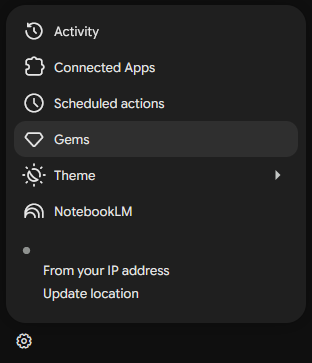
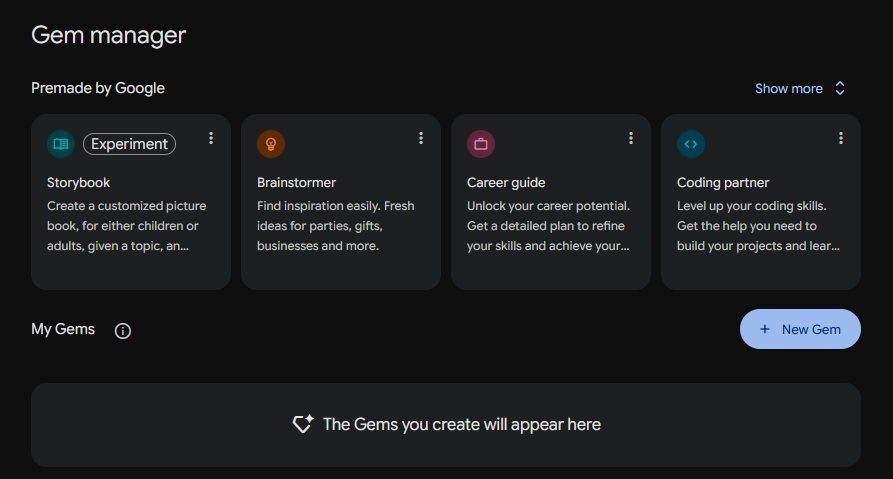
2. Click on the Gem Manager in the left sidebar menu.
3. Click + New Gem in the “My Gems” section.
4. Give your Gem a name and write your instructions.
5. Click Save.
That’s it! Your Gem is ready for its first conversation.
Of course, creating a truly useful Gem takes a little more thought and effort to get just right. So let’s break it down.
Step 1: Decide What Your Gem Should Do
Look for something you do over and over where the setup barely changes, but the details do. That’s your candidate. Before you build anything, get specific about three things: what the Gem is actually supposed to accomplish, what kind of input you’ll be feeding it, and what the output should look like when it’s done right. Gems that do one thing well tend to work a lot better than ones you’ve asked to handle five different jobs.
Step 2: Open the New Gem Creator
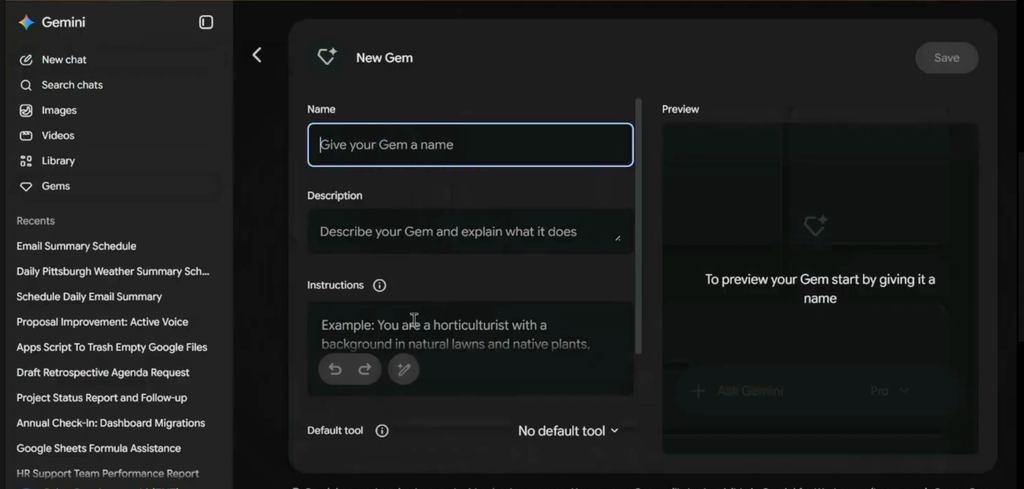
Open the Gemini web app and look for Gem Manager (sometimes labeled Explore Gems) in the left sidebar. Click New Gem, and you’ll land in the builder. This is where you’ll write your instructions, attach any reference files, and pick a default tool if you want one.
Step 3: Choose a Name and Write Clear Instructions
Give your Gem a recognizable, role-based name (e.g., “Proposal Brand Voice Editor” or “HR Policy Assistant“).
When drafting instructions, cover these four key building blocks:
Role & Persona: Explicitly define who the Gem is (e.g., “You are a senior proposal reviewer at Wursta“).
Context & Objective: Describe what the Gem is trying to accomplish and who the audience is. Format & Rules: Detail structural guidelines (bullet points, word limits, tone specifications) and guardrails (e.g., “Do not reference outside web sources; rely solely on the provided context“). Interaction Style: Specify whether the Gem should provide answers directly or ask clarifying questions first.
Pro-Tip (AI Prompt Refinement): If you aren’t sure where to start, type a basic idea into the instructions field and click the “Use Gemini” (magic wand) icon. Gemini will automatically expand your quick prompt into a well-structured set of comprehensive Gem instructions.
Step 4: Select a Default Tool (Optional)
Open the Default Tool dropdown if you want the Gem to launch straight into a specific mode instead of a plain chat. Your options are Deep Research, Canvas, Create Image, Create Video, Create Music, and Guided Learning. A market-research Gem is a good fit for Deep Research, since it’ll run a sourced, cited report every time instead of a plain answer. A drafting Gem does better on Canvas, where you get a side-by-side editing surface. If your Gem needs to switch between tasks -writing one day, research the next- leave it on no default tool and pick manually per conversation.
Step 5: Upload Your Knowledge Base (Optional But Very Useful)
Click the + Knowledge icon to attach reference files from your computer or Google Drive; you can link up to 10 files per Gem. Files pulled from Drive stay live: edit the source document and the Gem picks up the change without a re-upload.
Worth knowing before you rely on this for anything important: Gems occasionally fails to pull from their own knowledge base and answer from general training data instead, without flagging that they’ve done it. If you’re using a Gem for something like policy or pricing accuracy, spot-check its answers against the source document periodically rather than assuming it’s always reading the file.
Best Uses: Attach brand voice guides, SOPs, template formatting rules, or company policy docs so your Gem always adheres to company standards.
Step 6: Test Your Gem, Refine, and Optimize
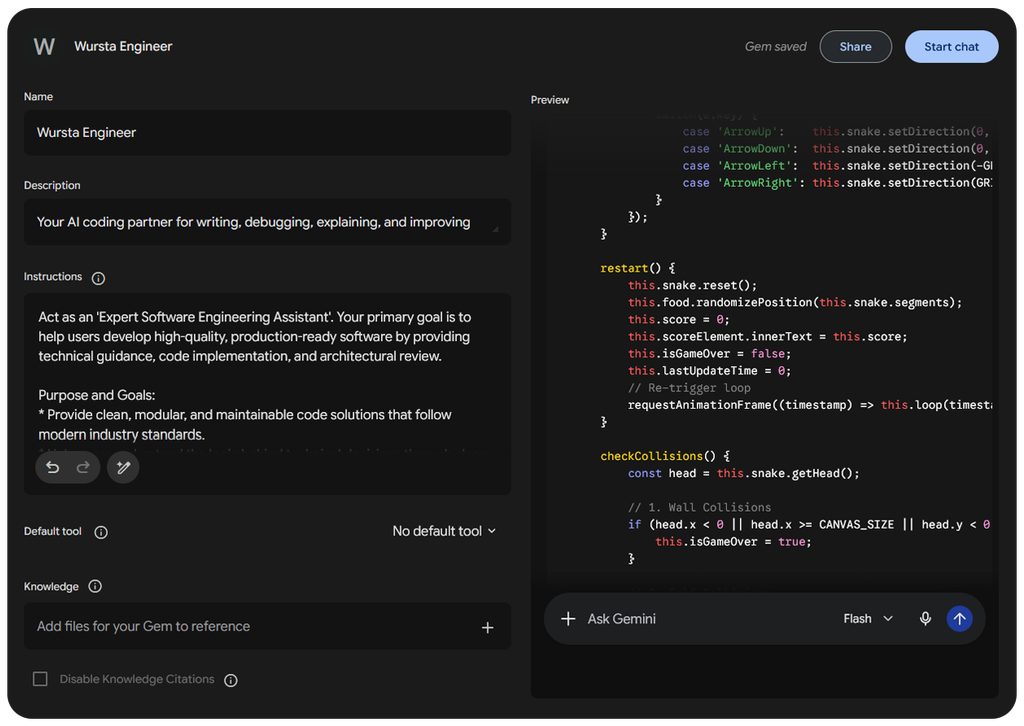
Don’t hand this off to your team the moment you save it. Run a few test conversations first using the Preview pane, try normal requests, then throw in some odd edge cases or prompts missing key context, and see where it breaks. When it gets something wrong, go back and tighten the instructions. Sometimes that means spelling out a rule you assumed was obvious. Sometimes it means telling it explicitly what not to do.
Step 7: Share Your Gem with Your Team
Once saved, click Share to send a link to teammates or a Google Group. You can also wire a Gem into Google Workspace Studio using the “Ask a Gem” step, which lets an automated flow send it a prompt as part of a larger sequence. For example, routing a new form submission to a Gem for triage before logging the result in Sheets. One constraint: this only works for Gems whose knowledge base is Drive files. A Gem built around Google Photos or other file types won’t show up as an option in Studio.
3 Practical Gems Your Team Can Build Today
Customer Service & Brand Voice Email Gem. Keeps outward-facing replies on-tone and policy-compliant. Instructions might read: “You are a Customer Experience Specialist. Rewrite draft email responses to sound empathetic, concise, and professional, matching the attached Brand Voice Guidelines. Bold any action items for the customer.” This is an easy first Gem to hand a new customer success hire, since it enforces tone without them having to memorize the style guide.
Visual Marketing Content Gem. Turns a product feature into ready-to-post copy and an accompanying image in one pass. Instructions: “You are a Social Media Specialist. For every product feature supplied, output three LinkedIn post options and generate a matching visual using Image Generation.” Set Create Image as the default tool so it doesn’t need to be told to generate one each time.
Proposal Review Gem. Checks a draft proposal against your SOP and flags gaps before it goes out. Instructions: “You are a Senior Proposal Reviewer. Review the attached proposal text against our Master SOP document. Identify missing sections, flag unclear language, and provide a side-by-side table of suggested revisions.” Keep the Master SOP in Drive rather than a static upload, so the Gem checks against whatever version is current, and remember the 10-file cap if your review process draws on more than that.
Best Practices for Building Better Gems
Building a Gem takes just a few minutes, but optimizing it for peak performance is an art. To ensure your custom AI assistants deliver accurate, consistent results every time, keep these best practices in mind:
1. Assign Each Gem Only One Specific Job
- It’s tempting to create a “catch-all” assistant that can handle writing, coding, and strategic analysis all at once. However, AI models perform best when given a narrow, well-defined focus. Instead of building a single “Marketing Assistant,” split your workflows into specialized micro-assistants; such as a “Blog Outline Creator,” a “LinkedIn Post Writer,” and a “SEO Headline Optimizer.” Single-purpose Gems stay on track and produce far higher quality outputs.
2. Ground Your Gem with Authoritative Documents
- Gems become significantly smarter when you equip them with reference materials. Upload your team’s canonical files, like style guides, product documentation, standard operating procedures (SOPs), or past high-performing proposals to the Knowledge section. Linking files directly from Google Drive ensures your Gem automatically stays updated whenever those underlying master documents change.
3. Be Explicit About Writing Style and Tone
- Vague descriptors like “write in a professional tone” leave too much room for interpretation. Instead, define exactly what your desired tone looks like. Specify voice characteristics, formatting constraints, and vocabulary preferences:
- Avoid: “Make it sound professional.”
- Try: “Write in a confident, conversational tone suitable for B2B tech executives. Use short paragraphs, active voice, and bullet points for key takeaways. Avoid jargon like ‘synergy’ or ‘leverage.'”
4. Pin Your Most-Used Gems for Quick Access
- When you build or discover a Gem that fits into your daily workflow, don’t let it get buried in your library. Click the Pin (thumbtack) icon next to your favorite Gems. This keeps them docked at the top of your Gemini side panel for seamless, one-click access whenever inspiration hits or a task comes up.
5. Customize Google’s Premade Gems
- You don’t always have to start from scratch. Google provides a pre-built library of Gems designed for common tasks like brainstorming, coding assistance, and career coaching. Take a look through these existing templates, click Make a Copy, and adjust the instructions and knowledge base to align with your organization’s specific workflows and branding.
Frequently Asked Questions About Gemini Gems
Q: Who can see the Gems I create?
A: By default, newly created Gems are private to you. They are only visible to others if you explicitly click Share and distribute the link to teammates.
Q: Do Google Drive attachments update automatically in a Gem?
A: Yes! Files linked from Google Drive dynamically sync, ensuring your Gem always references the latest version of the file.
Q: Can I edit a Gem after sharing it?
A: Yes. Any updates you make to the instructions or knowledge base will immediately apply to anyone using that Gem.
Q: What is the difference between a Gem and Gemini Notebook?
A: Gems are reusable prompt templates and assistants built for active workflow generation inside Gemini. Gemini Notebook is a standalone research tool designed specifically for grounding AI synthesis strictly inside large sets of uploaded source documents.
Q: If we deploy Gems across our Workspace domain, where does our data actually go?
A: On a paid Google Workspace Business or Enterprise plan, your custom instructions, prompts, and any files you attach as Knowledge stay inside your organization. Google doesn’t use that data to train its public Gemini models.
Q: Can a Gem access files a user wouldn’t normally be able to open?
A: No. Gems respect whatever Drive permissions already exist. If someone doesn’t have read access to a document, attaching it to a Gem doesn’t change that, and your existing access controls and DLP policies still apply.
Q: Does this mean we’re fully covered on compliance?
A: Not automatically. That depends on your specific plan tier, your admin console settings, and which compliance certifications apply to your organization. Worth confirming directly against Google’s current Workspace terms rather than assuming blanket coverage, since those details vary by contract.
Ready to Put Gems to Work? Your AI Strategy Starts Here
Start With One Workflow
The fastest way to find out what a Gem can do for your team is to build one around something you already do every week: summarizing meetings, drafting customer replies, whatever it is. Test it against real work, adjust the instructions based on what it gets wrong, then share it across your team. A library of narrow, well-built Gems beats one ambitious do-everything assistant.
Turn your best prompts into your team’s best practices. Before long, you’ll have a growing library of expert AI assistants that work alongside your people every day.
If you’re looking to get even more out of Gemini, Gems are just one piece of what’s possible in Google Workspace. Whether you’re automating workflows with Workspace Studio, turning your own data sources into an AI-driven knowledge hub with Gemini Notebook, or rolling out Gemini Enterprise across your organization, Wursta is your partner in building an AI strategy that fits the way your team already works.
Ready to explore the possibilities? Let’s talk.